
A wedding gift for your son or daughter, made from their childhood photos
 By Sagie, founder of Echoes·Updated November 4, 2026
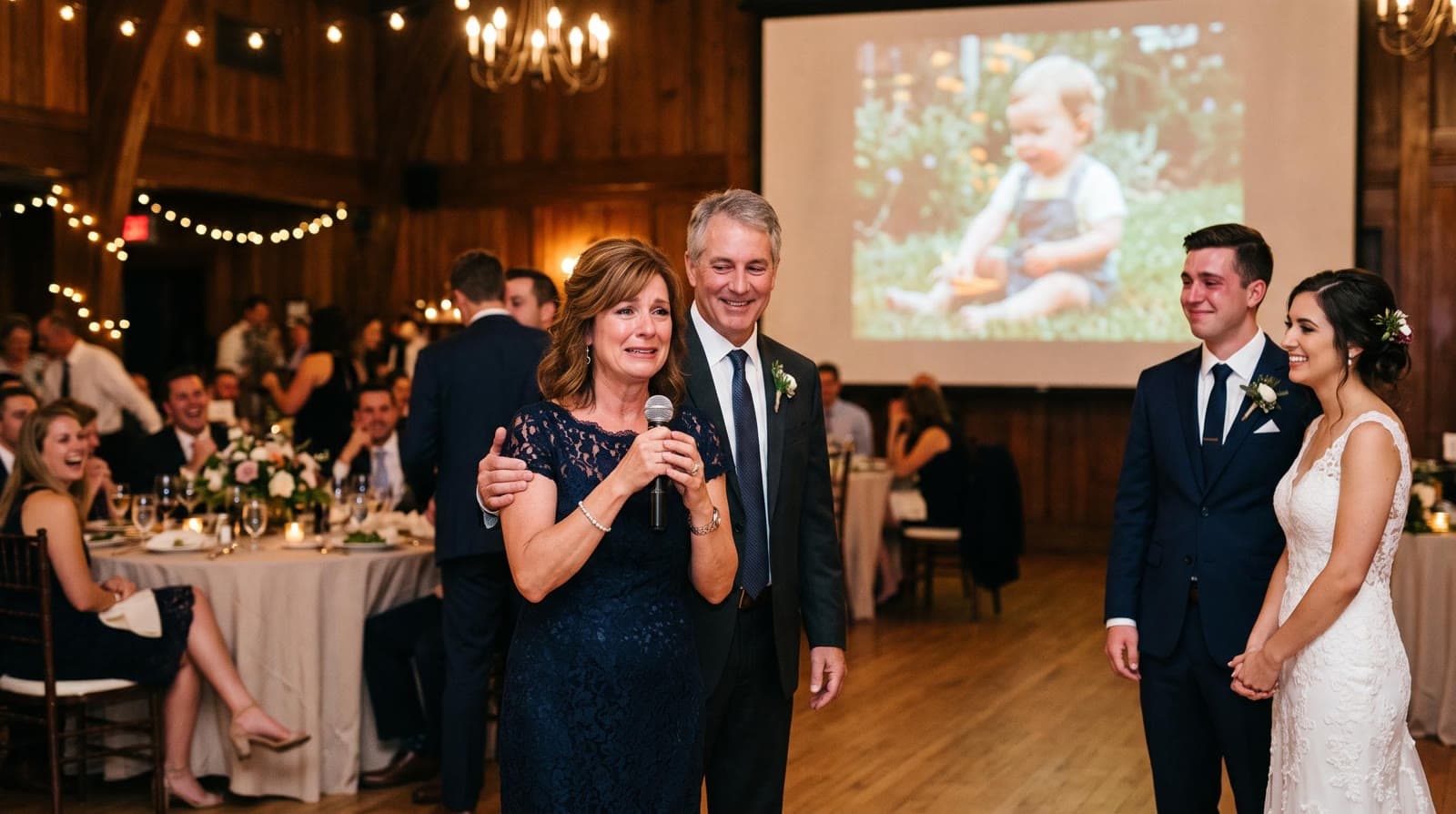
A wedding gift made from your child's photos is a video of them growing up, from their first baby photos to the wedding day, with each photo morphing into the next. Parents can play it after their toast at the reception, or give it privately before the wedding. You need dozens of photos with the face clearly visible, a song, and a few words of your own.
Why this gift comes from the parents
When a child gets married, the parents hold something nobody else has: the albums. The first bath, the first day of school, the braces, the army or college years. Most of those photos were never on a phone, and the couple may never have seen some of them.
That is why it works best as a gift from the parents. In a couple of minutes it says "we were there for all of it", without anyone having to give a long speech.
It's also different from the video many couples make themselves, with both of their childhoods and then the two of them together. If that's the plan, see a wedding video from the couple's childhood photos. The parents' gift is about one person: your son or your daughter.
When to give it
There are three common moments, and the right one depends on the wedding:
- After your toast at the reception. You say a few words, then the lights go down and the video plays. It also lets you keep the speech short.
- At the rehearsal dinner. A smaller crowd of close family and friends, and less pressure on the evening's schedule.
- Privately, before the wedding. The morning of, or the week before, just for your child (and their partner). Some parents prefer this, especially if their child doesn't love being the center of attention.
If it's going to play at the venue, tell the couple or their planner that you have a few minutes of video, even if what's in it is a surprise. A wedding evening runs on a tight timeline, and nobody wants the video to collide with the first dance.
How the video is built
The style for this is a Growing video, sometimes called an age morphing video: every photo turns into the next one, and your child grows up on screen in a single continuous shot. Because it follows one main person through all the photos, the plan is simple: your child, from the earliest photo you have to a recent one, in age order.
You can also add a short second part at the end: photos of the couple together, from the first one to the engagement. In Echoes each part is its own Growing project, and in the final step you put them in order, so the video ends on the two of them. Ask the partner, or the partner's parents, for a few couple photos. It's also a gentle way to welcome the partner into the family.
On length: every consecutive pair of photos becomes one animation. A 1-minute video, the smallest package, needs 13 photos in Growing style, and every extra minute needs 12 more. Two to three minutes sits well after a toast. There's more on lengths in how long should a video gift be.
Choosing the photos
Scroll the years and pick two or three photos from each year where you can, so the jumps between photos stay small. A few rules matter more than the rest:
- Pick photos where the face is clear. Sunglasses, a face turned away, or a child standing far in the background leave the AI guessing, and the result stops looking like your child.
- One main person in each photo. A crowded family photo is lovely, but your child gets lost in it. Fewer than three people per photo works best.
- Everyday photos work. A sharp snapshot from the kitchen table or a family trip is just as good as a posed school photo.
- Photograph old prints with your phone. You don't need a scanner. Lay the print flat in even daylight and shoot straight on, without glare or flash. If some of the originals are fragile, the Library of Congress has a short guide to caring for and handling photographs.
There's a longer guide in how to choose photos for a video gift.
Adding your own words
You can add text in a few places:
- An opening with your own text, such as your child's name and the wedding date, in a style such as Album of Memories, Window of Time or Door of Light.
- Text on an animation, such as an age or a year, which changes when the next animation starts. "Age 1", "First day of school", "Age 18" is enough to help guests follow along.
- A text slide before the couple part, if you added one, for example "And then they met".
- A closing with one line from you. It can be a short title card, or a closing video of your own, up to 2 minutes, with your line as text over it if you like. If you'd rather not speak live, record a short message on your phone and use it as the closing video: it keeps its sound, and you choose whether the music stops when it starts, so your voice is clear. Keep any text short. A blessing or a simple "We love you both" reads better on a big screen than a paragraph.
Music
Pick a song that means something to your family: the lullaby you sang, a song from a family trip, or the song your child played on repeat as a teenager. You can upload your own song, choose from the built-in library, or have a custom song written for the video. If you upload a track, keep in mind that owning it or streaming it doesn't by itself give you the right to put it in a video you share publicly. There's more in how to choose music for a photo video.
Getting it to the wedding
The shape of the video is chosen when you upload the photos, and every animation is made in it, so decide early. A venue screen is wide, so choose landscape for a wedding. If it's a private gift to watch on a phone, portrait or square can work better. See portrait, landscape, or square.
You download the finished video as an MP4. A few days before the wedding, get the file to whoever runs the screen at the venue, usually the DJ or the AV person, and ask for a run-through with sound. Keep a second copy on a USB stick in your bag. After the wedding, send the couple the MP4 file and the share link.
One parent described making a video like this for their son's Bar Mitzvah:
"Great experience! The app was simple and easy to use, and the result was exciting and professional. We created a special AI video for our son's Bar Mitzvah, which documented the moment in an original and unforgettable way. Highly recommended!"
- Guy
Your photos stay private, are never used to train AI models, and can be deleted anytime from your dashboard. If you get stuck, a real person is on WhatsApp to help. The Growing style is our signature video: each photo naturally morphs into the next. For group photos, the Classic style works best.
Your first animation is free to try, so you can see one of your child's baby photos come to life before the wedding.
What makes Echoes different
Echoes turns photos from across the years into one continuous video of a life. Each photo flows into the next, so a baby grows into a bride or groom, or a couple ages together over decades, in a single unbroken shot. Echoes then finishes it as a gift, ready to play at the event.
- Growing videos. You add dozens of photos of the same person or couple, and Echoes morphs each one into the next. It isn't a slideshow or a set of separate animations: you watch someone grow up or grow old in one continuous video. It fits weddings, bar and bat mitzvahs, anniversaries, and family tributes.
- Automated, but guided. Echoes does the heavy lifting: it picks the AI models, writes the prompts, generates the animations, and stitches everything into one finished video. You still decide everything that matters. It walks you step by step through ordering your photos, reviewing each animation (with a full set of free retries), and choosing the opening, the ending, and the music. You get the result of a skilled AI video workflow without having to learn one.
- A finished gift, not a tool. The result is a complete video with titles, an ending, a soundtrack, and a share link. It's priced by the length of the finished video, not by credits or tokens: a one-time purchase, with a 30-day money-back guarantee.

About the author
Sagie, founder of Echoes
Sagie is the founder of Echoes. He built it in 2025 after piecing together an AI video gift from his mother's old childhood photos for her 72nd birthday, and has since helped hundreds of families turn their own photos into video gifts.
Frequently asked questions
- Can both parents, or both families, work on it together?
- The simplest way is for one person to make the video and everyone else to send them photos. Grandparents, aunts and old family friends often have prints nobody has photographed yet. If the other side of the family wants to make their own video for the other half of the couple, the two videos can play one after the other.
- How long does it take to make?
- Most of the time goes into finding the photos, so give yourself a few weeks before the wedding. Once you have them, most people finish the video in under 30 minutes. After that you can change the music, the opening and the title cards and re-compile the video as many times as you like.
- What if one of the animations doesn't look right?
- Retry it, or swap the photo for a different one. Every package includes a bank of free retries sized to the package, to spend on whichever animations you're not happy with. Swapping a photo also uses retries from that bank.
- What does it cost?
- It's a one-time purchase priced by the length of the finished video, not a subscription, with a 30-day money-back guarantee. Your first animation is free to try, so you can see one of your child's photos come to life before you decide.
- Can the couple keep it after the wedding?
- Yes. The finished video is an MP4 file that stays in your account dashboard, ready to download or share with a link. The couple can keep it, send it to the family, or load it onto a digital frame at home.
- Is it safe to upload family photos?
- Your photos are private, stored securely and used only to create your video. They are never used to train AI models, and you can delete them anytime from your dashboard.