
How to find and gather photos of a loved one who passed
 By Sagie, founder of Echoes·Updated November 2, 2026
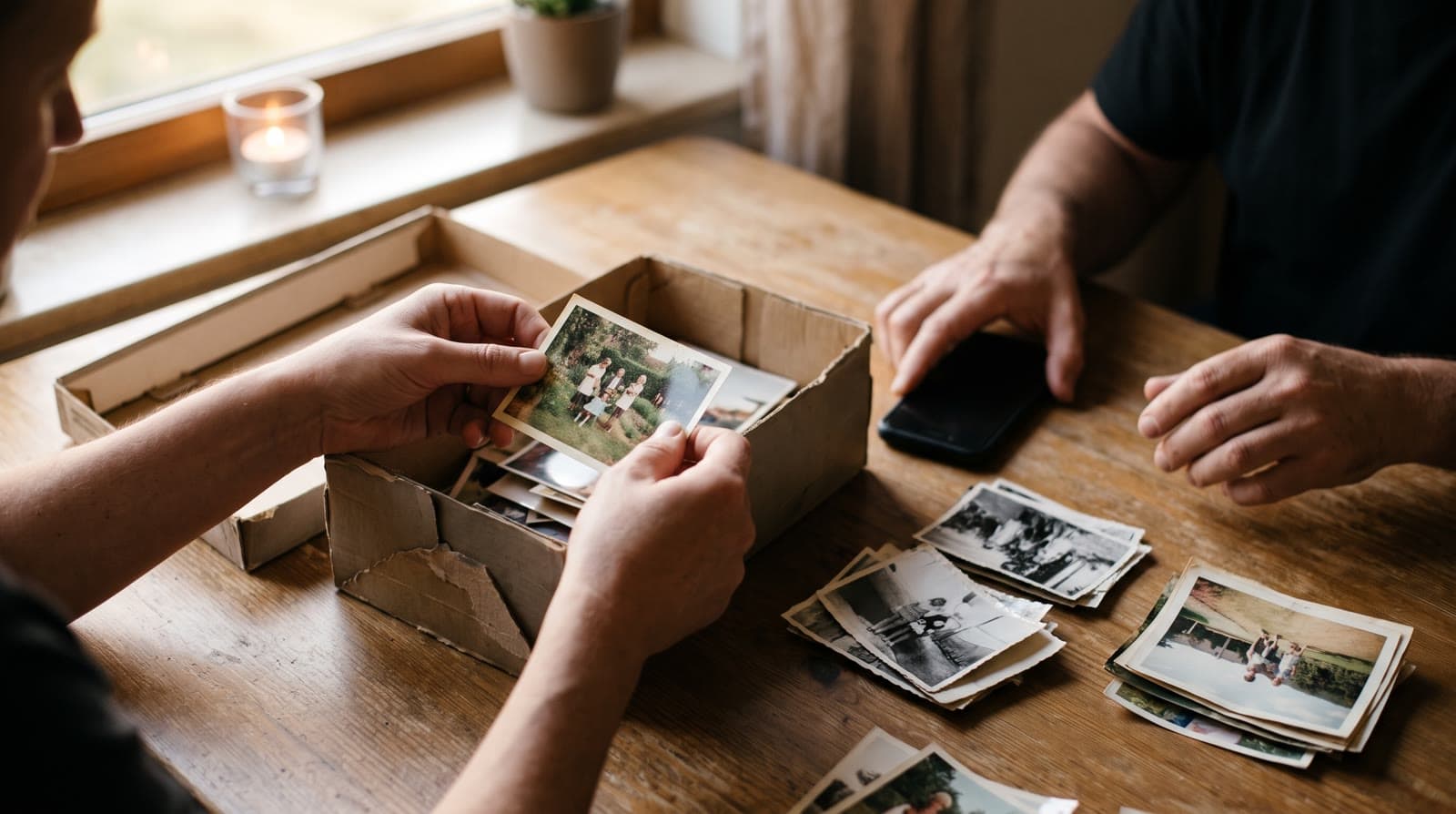
To gather photos of a loved one who passed, start with what the family already has: one gentle, clear message asking for original photos where their face is clearly visible, a few from each period of their life. Then photograph old prints with a phone in daylight. Their phone and cloud accounts can come last, since access takes time.
Why the photos are spread out
Going through someone's albums and phone after they're gone can be hard, so go at your own pace, and ask someone else in the family to help if you like.
Photos of one person rarely sit in one place. The childhood years are in a parent's album or a shoebox, the middle years in drawers or on an old computer, and the recent years on phones: theirs, their children's, their friends'. Some are in a cloud account nobody else can open, and some were posted online years ago.
So the work is less about finding one archive and more about asking the right people, in the right order. The first two steps below are the simplest place to start. For the video itself, see how to make a memorial video from photos.
1. Ask family and friends, in one message
The richest source is the people who loved them. Between them, siblings, children, cousins and grandchildren may hold most of the photos, and old friends, neighbours or colleagues may have photos the family has never seen.
One clear message is easier on everyone than many small requests. Send it in the family WhatsApp group (and to a few close friends), and say simply what would help:
- Photos where their face is clearly visible. That matters most for the video.
- A few from each period of their life that each relative or friend remembers: childhood, young adult years, work, marriage, raising a family, the grandchildren, the last years.
- Originals, not screenshots. A screenshot loses detail, and photos sent the usual way in a chat app are often compressed too, so ask people to send them as a file, or to add them to a shared folder you set up.
- A date, if there's one in mind. A date a week or two ahead lets people look in their own time, so no one has to rush.
Something as simple as this is enough: "Hi everyone. For Mom's memorial, we'd like to make a short video of her life from photos. If you have any where her face is clear, from any year, please add them to this folder, ideally by Sunday. Originals if you can, not screenshots. Thank you, it means a lot."
It helps if one person collects everything, so the originals end up in one place. It doesn't have to be the closest relative; a cousin or a family friend can do it.
2. Old albums and prints
Printed photos are often the only record of the early years. You don't need a scanner. Photograph each print with your phone in even daylight, held straight on, so there are no reflections and the edges stay square. A table by a window works well. Turn off the flash.
Two small habits help later:
- Photograph the back too if something is written there. A date or a few names in pencil is often the only clue to when a photo was taken.
- Put each print back where it came from. An album's order is part of the family's memory as well.
Old prints and albums can be fragile. Before taking photos out of an old album or sleeve, the Library of Congress guide to caring for and handling photographs is worth a read. For more on working with old prints, see making a video from old photos.
3. Their phone and cloud accounts
The recent years often live on their phone and in the cloud account behind it. If someone in the family already has access to the phone, it's worth copying the photos to a computer or a shared folder before the phone is reset or passed on.
If the photos are in an account no one else can open, what's possible depends on whether they set something up ahead of time:
- Apple. An Apple Account holder can name a Legacy Contact while they're alive. After their death, that person can request access to the account data, which might include photos, using the access key created when they were named and a death certificate.
- Google. A Google Account holder can set up Inactive Account Manager ahead of time, choosing which parts of their data to share with up to 10 people if the account becomes inactive.
Without these, getting into the account means a formal request to the company, and it takes time. Google, for example, has a form to submit a request regarding a deceased user's account. It says content may be provided in certain circumstances, only after a careful review, and it doesn't give out passwords. It may be worth starting if the account holds photos nobody else has. But a memorial video doesn't need to wait for it: the photos the family already has are enough to begin.
If the photos are already in your own Google Photos library, you don't need to download them first: Echoes can import them directly with Import from Google Photos.
4. Social media and old emails
A few more places that are easy to forget:
- Their social media profile. Photos they posted, and photos friends posted of them. These are usually smaller than the original files, so if a photo matters, ask the person who posted it for the original.
- Your own inbox. Search for their name or email address together with attachments (in Gmail, adding
has:attachmentto the search does this). Years of family emails often carry photos nobody thought to save. - Your own phone. Scroll back through your camera roll year by year. The People section of your phone's photo app may already group many photos of them in one place.
5. Choosing what goes in the video
By now there may be hundreds of photos, and there's no need to use them all. It's fine to leave out photos from the illness or the last months.
Choosing is easier with one rule first: only photos where the face is clearly visible. If a face is turned away, tiny, or hidden, the AI fills in the missing details and it won't look like them. Old, slightly faded prints can still work, as long as you can see the face.
Then think in decades. A few photos from each period of their life, in order from the earliest to the most recent, give the video its shape. In the Growing style, our signature video, each photo naturally morphs into the next, so a spread across the whole life becomes one continuous passage of time: a little girl grows into the grandmother the family knew. It works best when they are the main person in every photo, with fewer than three people in each. For big group photos, Classic style works best.
How many you need depends on the length. The smallest package is a 1-minute video, which takes 13 photos in Growing style or 12 in Classic style, and each extra minute takes 12 more, so a 3-minute Growing video takes 37 photos. For a long life, it can help to gather more than you think you need, then choose the clearest ones. How to choose photos covers the choosing in more detail.
Keep it organised
- Keep the original files. Work from copies, and keep everything you collected in one folder, including the photos that don't go into the video. That folder becomes a family archive in its own right.
- Don't guess. If nobody is sure of a year or who else is in a photo, leave it as "the 1970s" or ask an older relative. A wrong year or name stands out to someone who was there.
- Note who sent what, so you can thank them and send them the finished video.
- Let the closest family see it first. Before everyone else watches, show it quietly to the spouse or partner, the children or the parents, so they can say if anything should change.
Once the photos are gathered, the rest is guided step by step, and a real person answers on WhatsApp if anything gets stuck. As one customer put it:
"The process was simple, intuitive, and very user-friendly."
- Eyal Medan
For the words and music that go around the photos, see words for a memorial video and music for a memorial video. If the video is for the gathering a month or a year after they died, a video for the azkara covers preparing for it.
What makes Echoes different
Echoes turns photos from across the years into one continuous video of a life. Each photo flows into the next, so a little girl grows into the grandmother the family knew, or a couple ages together over decades, in a single unbroken shot. Echoes then finishes it, ready to play at the memorial.
- Growing videos. You add dozens of photos of the same person or couple, and Echoes morphs each one into the next. It isn't a slideshow or a set of separate animations: you watch someone grow up or grow old in one continuous video. It fits memorials, family tributes, and anniversaries.
- Automated, but guided. Echoes does the heavy lifting: it picks the AI models, writes the prompts, generates the animations, and stitches everything into one finished video. You still decide everything that matters. It walks you step by step through ordering your photos, reviewing each animation (with a full set of free retries), and choosing the opening, the ending, and the music. You get the result of a skilled AI video workflow without having to learn one.
- A finished video, not a tool. The result is a complete video with titles, an ending, a soundtrack, and a share link. It's priced by the length of the finished video, not by credits or tokens: a one-time purchase, with a 30-day money-back guarantee.
Your first animation is free to try, so you can see how one of their photos looks, and take your time deciding.

About the author
Sagie, founder of Echoes
Sagie is the founder of Echoes. He built it in 2025 after making a video from his mother's old childhood photos, and has since helped hundreds of families turn their own photos into videos.
Frequently asked questions
- How long does the video take once the photos are gathered?
- Making the video itself doesn't take much of your time: most people finish in under 30 minutes. Each photo is animated in the background, so you can upload, close the tab, and come back when the animations are ready. Gathering the photos often takes longer, so if there's a date in mind, ask a week or two ahead.
- Can a home video of them be part of the memorial video?
- Yes. The closing can be a video of up to 2 minutes that keeps its own sound, so a short home video with their real voice can close the video, and you choose whether the music stops, plays along, or plays alone. The opening can be a video of your own too, up to 60 seconds. Voice narration over the animations isn't supported.
- Can I put a year or their name on screen?
- Yes. A short text can sit over any animation, such as an age or a year, and when the video has more than one part, a text slide can introduce each part. The opening and closing can carry a name, dates or a short dedication. If you're unsure of a year, a decade is enough.
- Are the photos I upload private?
- Yes. Your photos are private to you, stored securely, and never used to train AI models. They're only used to make your video, and you can delete them from your dashboard at any time. That matters even more with photos a whole family trusted you with.
- Can we make more than one video from the photos we collect?
- Yes, as a separate project with its own photos, music and opening, for example a Classic video from the group photos that didn't fit a Growing one. A separate project needs its own animations from a package, and a Growing video can't be shortened by deleting animations. What's free is re-compiling the same project with different music, opening or text.
- What does it cost?
- It's a one-time purchase priced by the length of the finished video, not a subscription, with a 30-day money-back guarantee. The opening, music, a bank of free retries sized to the package, and re-compiling the final video as many times as you like are all included.