
A memorial video for Yom HaZikaron: for families, schools and units
 By Sagie, founder of Echoes·Updated November 2, 2026
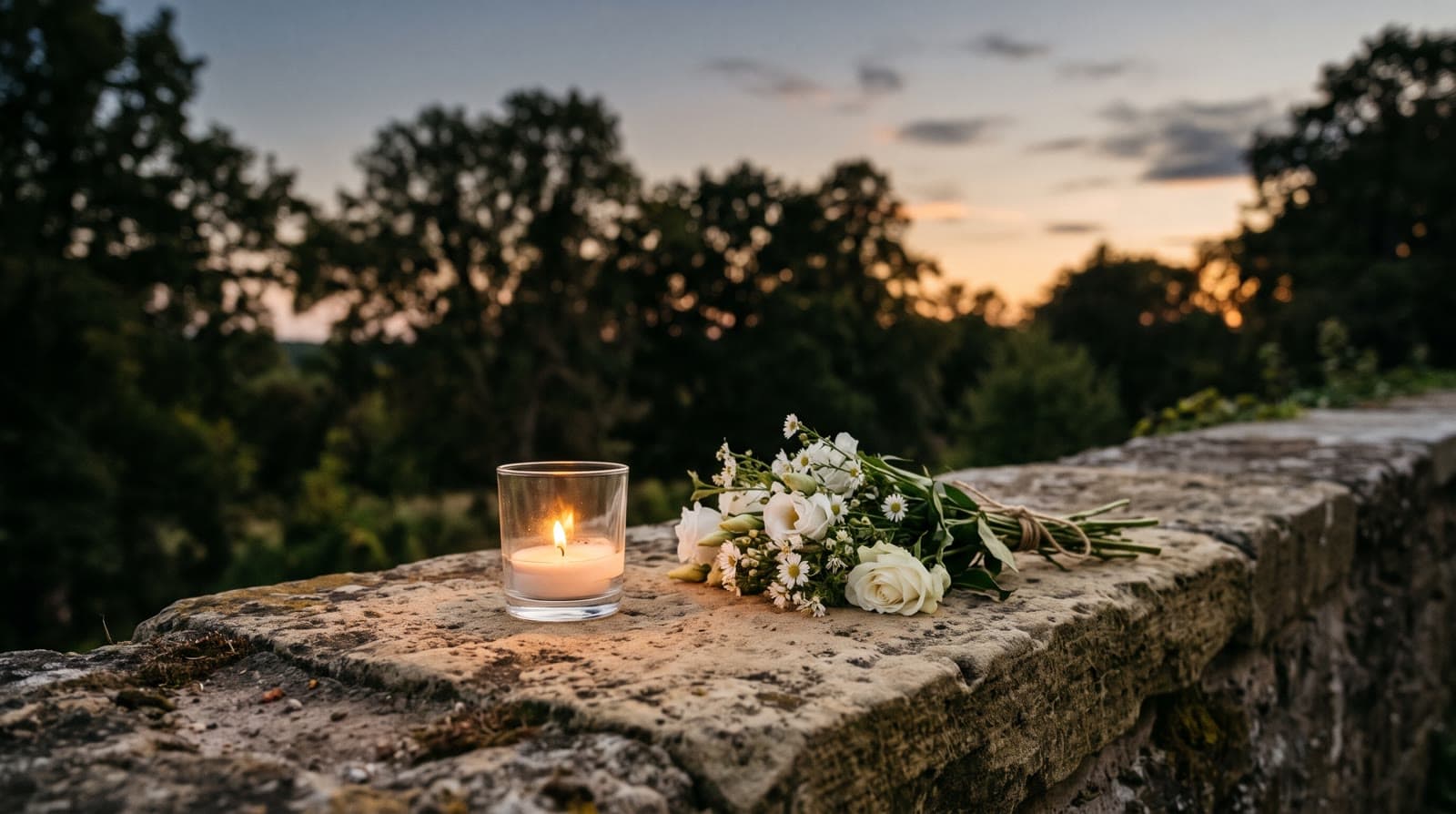
A Yom HaZikaron memorial video tells the life of someone who fell in Israel's wars or was killed in a terror attack, through the family's photos, in order from childhood on. Whoever makes it, the family comes first: their photos, their words, their blessing before anyone else sees it. In Echoes' Growing style, each photo gently morphs into the next.
Who makes these videos, and where they play
If this is for your own son or daughter, father or mother, brother, sister or partner, there is no need to do it all at once, and it's fine to ask someone close to take on the technical part. If you are a teacher, a youth counselor or a friend from the unit, you are making something about another family's loss, and their wishes come before anything else.
Yom HaZikaron, Israel's Memorial Day for the fallen of Israel's wars and the victims of terror, falls on the day before Yom Ha'atzmaut. Videos in their memory are made for that day and for the other dates the family marks. They are made by the family, or by others with the family's blessing:
- The bereaved family, for a small ceremony at home, a memorial evening, or the yearly gathering of family and friends.
- A school or a youth movement, preparing a ceremony in memory of a graduate or a former member.
- A unit or a group of friends, holding a memorial evening for someone they served with or grew up with.
The steps are the same for all three; what differs is whose video it is. For the general steps, see the main guide on how to make a memorial video from photos.
Ask the family first
For a school, a youth movement or a unit, this is the most important step, and it comes before any photo is uploaded. Reach the family through someone close to them, a teacher who stayed in touch or a friend, and ask gently, giving them time to answer:
- Would they like a video at all, or would they rather the ceremony be without one?
- Which photos would they like shown, and are there any they would rather not show?
- How would they like the name and the dates to appear on screen?
- Would they like to see the video before the ceremony? Leave time for that.
Some families want to be closely involved, and some prefer to send photos and leave the rest to you; both are fine. Send them the finished video privately, with enough time for changes, and let it play in public only after they tell you it feels right. If they would rather have still photos, or no video at all, that is their decision to make.
When the family is making the video themselves, the same care applies within the family. Parents, siblings, children and a partner may each want a say.
A whole life, in the order it was lived
A memorial video usually follows the order the life was lived: the baby photos, the school years, the youth movement, the army years if there were any, and the last photos the family has. The army years are one part of a life, not all of it. The Growing style is our signature video: each photo naturally morphs into the next, so a child grows up on screen into the person everyone at the ceremony remembers, in one continuous video. The prompt for each animation is tailored to the photos.
Growing works when there are enough clear photos of the same person:
- The same person in every photo, with fewer than three people in each.
- The face clearly visible. If the face is small, turned away or hidden, the AI fills in the details and it stops looking like them.
- Enough photos across the years. Growing needs dozens of photos to tell a full life, and for someone who died young there may not be many photos. Gather what there is first. The shortest video, one minute, takes 13 photos in Growing style, and a short video is enough.
Unit photos are often group photos, a row of soldiers or a whole platoon. For those, Classic style works best, and it can be made as its own project. For a victim of terror, the army may not be part of the story at all, and the order by age stays the same.
Where the photos come from
Start with the family: albums, a parent's phone, a shared cloud folder. Friends from the unit may have photos from the service the family has never seen. Classmates and teachers may have pictures from school trips and ceremonies; a class photo where their face is one of thirty small ones won't work for Growing, but a photo with them clearly in view will. Every photo friends send goes to the family first, and the family decides what is used.
Old prints don't need a scanner: photograph each one with a phone in even daylight, held straight on. For fragile originals, the Library of Congress has a practical guide to caring for and handling photographs. The guide on finding photos of a loved one who passed covers phones, accounts and asking relatives in more detail.
For fallen soldiers, the Ministry of Defense keeps Yizkor, the state's memorial site for the fallen of Israel's wars. It is a place to read and remember. The photos for a video, and permission to use them, come from the family.
Words on screen
The words are few, and the family chooses them. The name and the dates can be enough:
- The opening. An AI Video Opening with your own text, or a simple slide. For a memorial the calm styles fit, such as Floating Lanterns, Reflection in Water, Album of Memories or Window of Time.
- The name, and the rank only if the family wants it. Some families want the rank shown, and some want only the name they called him or her at home.
- The dates, in the Hebrew calendar, the civil one or both, as the family prefers.
- z"l or Hy"d. After the name, some families write z"l ("of blessed memory"), and others Hy"d ("may God avenge their blood"). Which one, or neither, is the family's choice.
- Text on an animation to mark the chapters of one life, such as an age, a year or "The unit", over the animation where that chapter begins. When the video has more than one part, a text slide can also introduce each part.
Hebrew text works in the video, set right to left (see Hebrew text in a photo video). For more on wording, see what to write in a memorial video.
Music for a ceremony with words and songs
When the video plays at a ceremony between words in their memory, readings and songs sung live, quiet instrumental music fits and doesn't compete with what comes next. You can upload a song of your own, choose from the built-in library, or create an AI-generated custom song from a few memories about them, with the option "Instrumental only (no singing)". If there was a song they loved, the family may want it (uploading a song means confirming you have the rights to use it in the video and share it); you can use up to five songs and set one to start at a specific animation. For a calmer pace, turn on Longer animations, which makes each animation play a little longer. The guide on music for a memorial video goes further.
The closing: their own voice, if the family wishes
Echoes does not record narration, clone a voice or put new words in anyone's mouth. It animates the real photos you upload. But the closing can be a real home video of them, up to two minutes, with their own sound: a birthday, a trip, a few words to the camera. Choose Only your video's sound, and the music stops so their voice is heard on its own.
Which video to end with, if any, is the family's choice. Ending on a photo or a quiet slide is just as fitting.
When it plays at the ceremony
A little preparation means no one has to worry about the screen or the sound when the moment comes:
- Landscape for a screen. The shape is chosen when you upload the photos, so decide it before you start.
- Check the screen at the hour of the ceremony. An outdoor screen at sunset is much harder to see than the same screen at night.
- Play it through the sound system, not a laptop speaker, and listen from the back row.
- Run through it once beforehand, in its place in the ceremony, with whoever runs the screen and whoever speaks before and after it.
- Keep a copy of the MP4 on a phone or a USB stick, so nothing depends on the venue's internet.
The guide on playing a video on a screen in a room covers the screen and sound in detail. If you're a teacher or a friend doing this for the first time and the technical side worries you, there's less to it than it may seem, and a real person answers on WhatsApp if something gets stuck. As one customer put it:
"I had a little trouble with a slightly outdated mobile phone and questions that arose along the way to producing the video and I received excellent service and support, which is not obvious at all."
- Sivan Lamdan
What makes Echoes different
Echoes turns photos from across the years into one continuous video of a life. Each photo flows into the next, so a little boy or girl grows into the person the family knew, in a single unbroken shot. Echoes then finishes it, ready to play at the ceremony.
- Growing videos. You add dozens of photos of the same person or couple, and Echoes morphs each one into the next. It isn't a slideshow or a set of separate animations: you watch them grow up in one continuous video. It fits memorials and family tributes.
- Automated, but guided. Echoes does the heavy lifting: it picks the AI models, writes the prompts, generates the animations, and stitches everything into one finished video. You still decide everything that matters. It walks you step by step through ordering your photos, reviewing each animation (with a full set of free retries), and choosing the opening, the ending, and the music. You get the result of a skilled AI video workflow without having to learn one.
- A finished video, not a tool. The result is a complete video with titles, an ending, a soundtrack, and a share link. It's priced by the length of the finished video, not by credits or tokens: a one-time purchase, with a 30-day money-back guarantee.
Your first animation is free to try, so you can see how one of their photos looks, show it to the family, and take your time deciding.

About the author
Sagie, founder of Echoes
Sagie is the founder of Echoes. He built it in 2025 after making a video from his mother's old childhood photos, and has since helped hundreds of families turn their own photos into videos.
Frequently asked questions
- How long should the video be for a ceremony?
- Ask whoever organizes the ceremony how much time there is for the video; a short one is fine. The smallest package is a 1-minute video, which takes 13 photos in Growing style or 12 in Classic style, and each extra minute takes 12 more, so a three-minute Growing video takes 37 photos.
- Can we make one version for the ceremony and another for the family?
- Yes, as two separate projects, each with its own photos, words and music. A separate project needs its own animations from a package, and a Growing video can't be shortened by deleting animations, so a short ceremony version is its own, shorter project. Re-compiling the same project with different music, opening or text is free.
- What if the family asks for changes after they watch it?
- Their wishes come first, and the changes are simple to make: change the words, the music or the opening and compile the final video again. Re-compiling is included, as many times as you like, at no extra cost. An animation you want redone can use a retry from the package's bank of free retries. The shape of the video is set at upload and stays.
- Is it safe to hand a family's photos to a school or unit project?
- The photos are private to the account that uploads them, stored securely, and never used to train AI models. They are only used to make the video, and they can be deleted from the dashboard at any time. Agree with the family beforehand on who keeps the photos and the video afterwards, and return or delete them as they wish.
- How long does it take to make?
- The making itself doesn't take much of your time: most people finish in under 30 minutes once the photos are gathered. Each animation is made in the background, so you can close the tab and come back. Gathering the photos and giving the family time to watch and respond usually take longer, so starting a few weeks before the ceremony means no one has to rush.
- What does it cost?
- It's a one-time purchase priced by the length of the finished video, not a subscription, with a 30-day money-back guarantee. The opening, the music, the title cards and re-compiling the final video are included in every package.