
How to make an end-of-school-year video from photos
 By Sagie, founder of Echoes·Updated October 8, 2026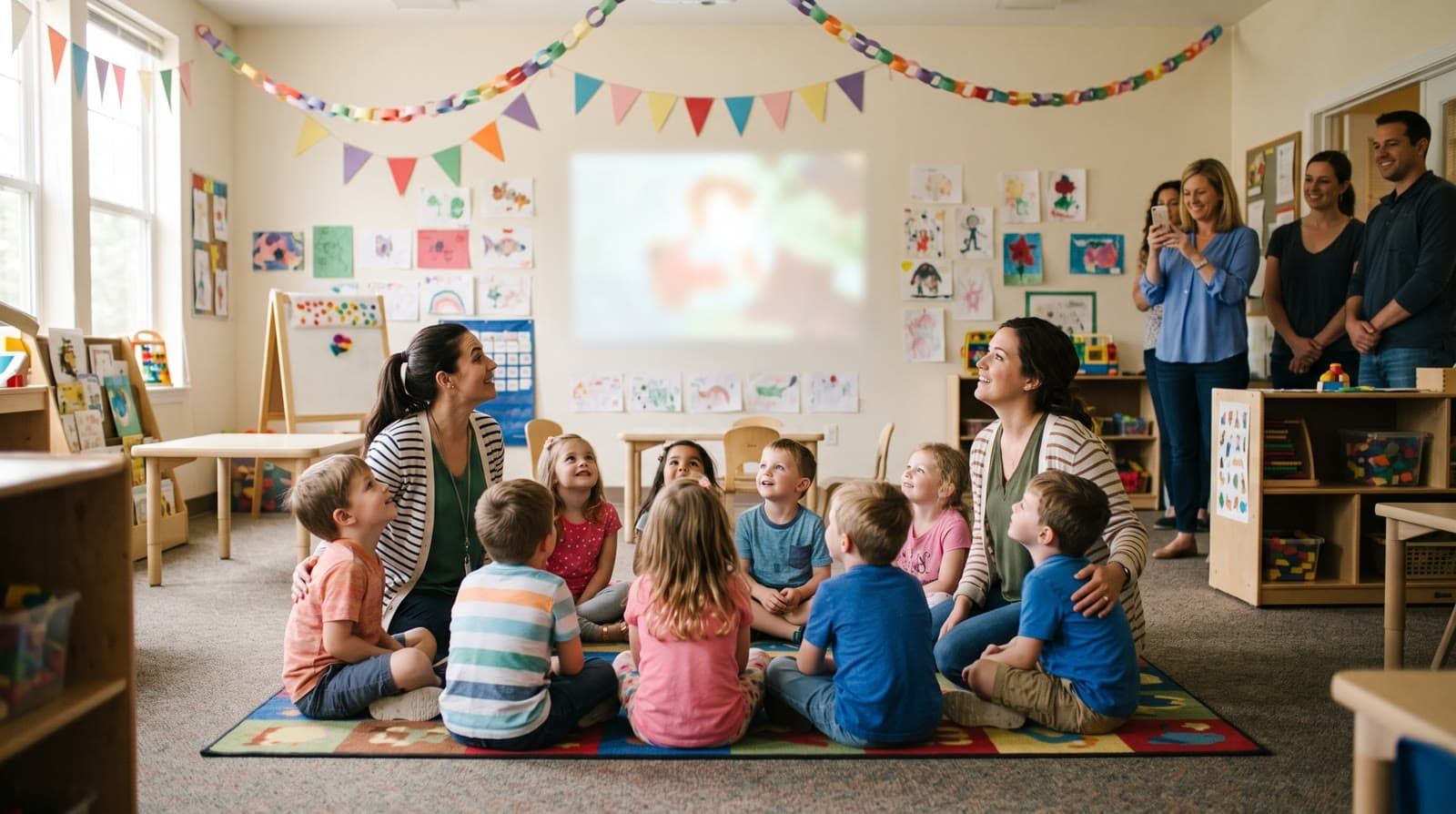
An end-of-school-year video turns the year's photos into one short film for the ceremony or the class party. For a class video full of group photos, use the Classic style, where each photo is animated on its own. For a video of your own child from their first day of school to the last, use the Growing style, where each photo blends into the next.
Two different videos
At the end of preschool, kindergarten, or elementary school, parents usually mean one of two things by "the end-of-year video":
- The class video. Photos of the whole class across the year: field trips, holidays, the school play, the last day. It's made by one parent, the parents' committee, or the teacher, and it plays at the ceremony.
- Your own child's video. Photos of one child from their first day of school to today, as a gift for them or for the grandparents.
They need different styles, so it's worth deciding which one you're making before you collect photos.
The class video: Classic style
Class photos are group photos: a dozen kids around a table, the whole class on the stage, three friends on the swings. In the Classic style, each photo is animated on its own with gentle, natural motion, and then all of them are put together into one video. That suits a year of group photos well.
A simple structure that works:
- Opening: a title card with the class name and the year.
- The year in order: the first weeks, the holidays, trips and events, the end of the year.
- Every child: one clear photo of each child somewhere in the video.
- Closing: the last group photo and a few words from the teacher or the parents.
Collecting photos from the class
Most of the year's photos are spread across thirty phones. A few things make collecting them easier:
- Pick one person to collect. One parent builds the video in one account, and everyone else sends photos to them.
- Ask early and give a deadline. "Send your three favorite photos from this year by Friday" gets better results than "send anything you have".
- Ask the teacher. Teachers often have the best photos from inside the classroom.
- Include printed photos. If there's a printed class photo from the start of the year, photograph it with your phone in even daylight, straight on. The Library of Congress has a short guide to caring for and handling photographs for fragile prints.
Which photos to use
- Faces clearly visible. The rule that matters most: if faces are turned away or tiny, the AI has to fill in the details, and the kids stop looking like themselves. Close group photos work much better than a whole stage shot from the back row.
- Every child at least once. Keep a simple list of names and tick them off as you go.
- Ordinary moments. Snack time and a messy art table often come out better than posed photos.
How many photos
In Classic style the smallest package is a 1-minute video, which takes 12 photos, and each extra minute takes 12 more. For a ceremony, two to four minutes is usually right, so plan on 24 to 48 photos. A class of 30 children with one photo each already takes you past two minutes, before any group photos. There's more on lengths in how long should a video gift be.
Your own child's video: Growing style
For a video of one child, the Growing style is our signature video: each photo naturally morphs into the next, so you watch them grow from the first day of preschool to the last day of sixth grade in one continuous video. It works best with the same child as the main subject in every photo, fewer than three people per photo, and a clear face in each one.
Back-to-school photos work really well for this: the same doorway, the same backpack pose, one year older each time. In Growing style, the smallest package is a 1-minute video, which takes 13 photos, and each extra minute takes 12 more. There's a full walkthrough in how to make a Growing video.
Finishing and playing it
- A personal opening with your own text, such as the class name and year.
- Music. A song the class sang this year, a track from the built-in library, or a custom song written for the class.
- A closing title card with a thank-you to the teachers.
- Landscape for the projector at the ceremony. See portrait, landscape, or square.
If an animation doesn't come out right, retry it or swap the photo. Every package comes with a full set of free retries, one for every animation in it, and you can re-compile the final video as many times as you like. The finished video is an MP4, easy to send to the parents after the ceremony.
A note on privacy
A class video has photos of other people's children, so treat it with care. Let the parents know what the video is for, leave out any child whose parents ask, and share the finished file in the class group rather than posting it publicly. Your photos and videos in Echoes are private by default, are never used to train AI models, and can be deleted anytime from your dashboard.
"Since I launched Echoes, hundreds of families have gotten this gift - and felt the emotion, the excitement, and the warmth of seeing their loved ones over the years."
- Sagie, founder of Echoes

About the author
Sagie, founder of Echoes
Sagie is the founder of Echoes. He built it in 2025 after piecing together an AI video gift from his mother's old childhood photos for her 72nd birthday, and has since helped hundreds of families turn their own photos into video gifts.
Frequently asked questions
- Can several parents work on the same video?
- The video is made in one account, so it's easiest when one parent collects the photos and builds it. Everyone else sends photos to that person, for example in the class group chat or a shared album.
- Can I make the class video and my own child's video from the same photos?
- Yes. They are separate projects: a Classic project for the class photos, and a Growing project for your child's photos across the years. You can use the same photos in both, and each one gets its own music and opening.
- How long does it take to make once the photos are collected?
- Most people finish in under 30 minutes. The animations are created in the background, so you can upload the photos, leave the tab, and come back when they're ready to add the music and opening.
- Can each child appear in the video?
- Yes. A simple way is one clear photo of each child, plus group photos from the year. With a big class, check before you finish that nobody was left out; parents notice right away.
- How do we play it at the ceremony?
- The finished video is an MP4. Choose landscape for a projector or TV, send the file to whoever runs the screen a few days ahead, and test it in the room with the sound on.
- What does it cost?
- It's a one-time purchase priced by the length of the finished video, not a subscription, with a 30-day money-back guarantee. Retrying animations, changing music and titles, and re-compiling the final video are included.