
How to make a celebration of life slideshow from family photos
 By Sagie, founder of Echoes·Updated November 23, 2026
To make a celebration of life slideshow from family photos, plan for two moments. A long, quiet loop of everyone's photos plays while guests talk, and one short video of their life plays once, when everyone stops to watch. Gather the photos in a shared album a week ahead, make both in landscape, and play them from a downloaded file.
A different kind of gathering
If you're planning a celebration of life, it's likely in the weeks after a loss, with a lot else to sort out at the same time. This guide keeps to one part of it: what to show on the screen.
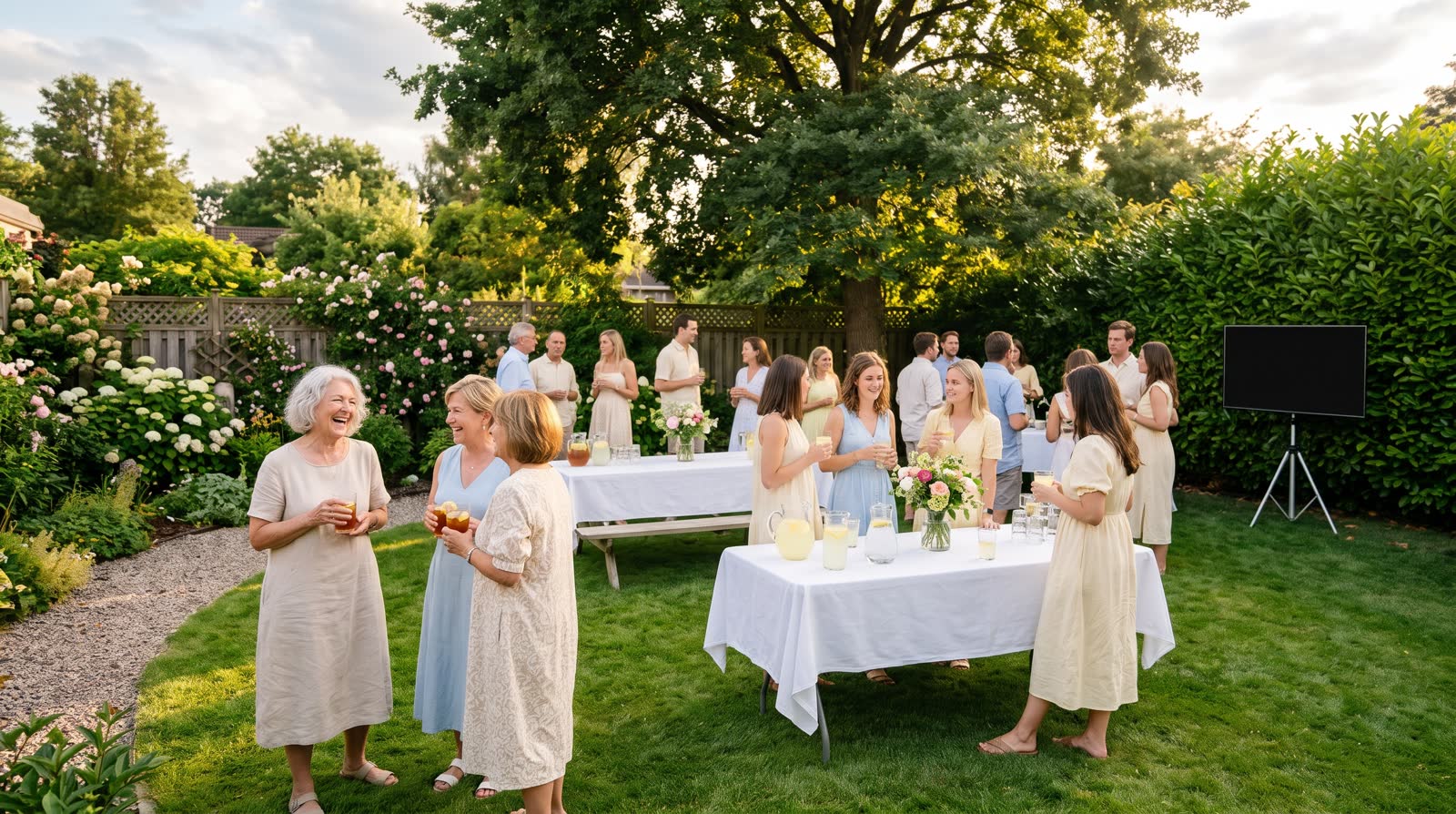
A celebration of life is usually held some days or weeks after the funeral, or in place of a formal service. It often happens at home, in a garden, a park, a restaurant or a club they belonged to. People stand, talk, eat and tell stories. The family sometimes asks guests to wear bright colors instead of black. The mood is lighter than at a service, and that's part of the point.
That changes what the screen is for. At a service, everyone sits facing it. At a celebration of life, people move around, and the screen has two jobs: to play in the background for hours, and to have everyone's eyes for a few minutes. One file can't easily do both. You can also do only one of them, or neither: the closest family decides.
Two jobs for the screen
| The background loop | The shared moment | |
|---|---|---|
| When it plays | From the first guest to the last | Once, at a set time |
| Sound | Off, or quiet music | Up, so everyone hears it |
| Which photos | Everything: group photos, trips, parties, the guests with them | The clearest photos of them, from childhood to the recent years |
| Order | Any order works | The order the life was lived |
| Length | As long as you like, since it repeats | A few minutes |
The loop is where guests find themselves. Someone spots the photo from a fishing trip in 1994, calls a friend over, and a story starts. The shared moment is where everyone sees the whole life at once.
Gather the photos in a shared album
Most of the photos you need are on other people's phones. A celebration of life is a good reason to ask everyone, not only the family, because friends from work, the neighborhood or the club have photos the family has never seen.
A shared album makes that simple. In both Google Photos and Apple's Shared Albums, the people you invite can add their own photos and videos, and the owner controls whether they can. Create one album, then send the link in a single message with a clear ask:
- Any photos they have of them, from any year.
- The original photo, added from their phone's gallery, rather than a screenshot of a chat or a social media post.
- A date, about a week before the gathering, so there is time to sort the photos and make the video.
When the photos come in, sort them into two piles. Clear photos where they are the main person, with fewer than three people in the picture and the face clearly visible, go to the video of their life. Everything else goes to the loop. Many photos will end up in the loop, and that's fine: it's where group photos belong.
If some years are missing, old albums and their own phone are the next places to look. The guide on finding photos of a loved one who passed covers where to look and how to ask.
The shared moment: a video of their life
For the few minutes when everyone watches together, the Growing style is our signature video: each photo naturally morphs into the next. A school photo becomes a wedding photo, the wedding photo becomes a parent with a baby, and the guests watch one person move through a whole life without a cut. The prompt for each animation is tailored to your photos.
A few minutes is enough. The smallest package is a 1-minute video, which takes 13 photos in Growing style, and each extra minute takes 12 more: 37 photos for three minutes, 49 for four. Put them in the order the life was lived, and choose the last photo with care, since that's where the video comes to rest.
A few touches suit a celebration of life:
- An opening with their name. The video can start with a personal AI opening with your own text. Brighter styles like Photo Magic, where their photos float all around and then burst into light, fit a lighter gathering, and Album of Memories is a quieter choice.
- A year or an age on some animations, so guests can follow the decades.
- A closing that sounds like them. The closing can be a home video, up to 2 minutes, that keeps its own sound. A few seconds of them laughing at a birthday or telling a joke at the table can end the video better than any title.
- Large, short text. In a garden or a big room, people watch from across the space. Keep each line to a few words so it reads from the back.
If an animation doesn't look the way you pictured it, retry it: every package includes a bank of free retries sized to the package, and you can also swap in a different photo. For the words on screen, see what to write in a memorial video. The main guide to making a memorial video from photos walks through every step.
The loop: everything else, on repeat
The loop doesn't need the same care as the shared moment, because nobody watches it from start to finish. People glance at it between conversations. A few ways to make it:
- A plain slideshow of everything in the shared album, made in PowerPoint, Google Slides or any slideshow app and saved as a video file. It can hold hundreds of photos.
- A video in Classic style of the group photos: each photo is brought to life on its own, then put together into one video. Classic works best for group photos, which is most of what guests send.
- The video of their life, on repeat, after it has played once with sound, for the guests who arrived late.
The comparison between a still slideshow and an animated video is in memorial slideshow or memorial video.
Whatever you choose, check that it repeats on the equipment that will play it. On a laptop, QuickTime Player (View, then Loop) and VLC can both play a video on repeat. On a TV playing from a USB stick, look for a repeat option in its media player before the day. Keep the loop's sound off or low, so people can talk over it.
Music they loved, not music for a funeral
A celebration of life gives you room for brighter music: the song they played in the car, the band from their wedding, the record they put on every Sunday. Some guests will know the song before the first photo appears.
In Echoes you can upload a song of your own, choose from a built-in library, or create a custom song written from your memories of them. You can use up to 5 songs one after another, and a song can start at a specific animation, so the music can change with the chapters of their life. If a song is shorter than the video, it loops; if it's longer, it fades out at the end. There is more on this in choosing music for a memorial video.
The screen and the sound at the gathering
- Choose landscape when you upload the photos. Echoes asks for the shape at upload, and every animation is made in it. A landscape video fills a TV or a projector screen without black bars. A portrait copy for sharing can come later: pick portrait in Format & pacing and compile again, and everything is shown whole on a blurred background.
- Download the MP4 and keep a second copy on a USB stick or a phone. A park or a garden may have no Wi-Fi, and a borrowed connection is not something to depend on.
- Mind the sun. Screens are hard to see in direct sunlight. Place the screen in the shade, or plan the shared moment for later in the day or indoors.
- Bring a speaker for the shared moment. A TV speaker disappears outdoors or in a busy room. Play it once on the real equipment, with the sound on, before the guests arrive.
- Decide who presses play, and when. Right before people share stories works well, or right after.
The guide on playing a video on a screen at an event covers the screen and the sound in more detail.
You don't need editing skills
Putting the video together doesn't mean learning new software. As one customer described it:
"I really enjoyed the whole process. Instead of using several different AI tools, paying for multiple subscriptions, and learning how to use each one separately, I had a true one-stop shop. The interface was friendly and easy to use, I had full support available at any time, and the final result was absolutely stunning. I really enjoyed both the process and the outcome!"
- Noa
If you get stuck, a real person on WhatsApp can help. Before it plays for the guests, it's kind to show it to the closest family privately.
What makes Echoes different
Echoes turns photos from across the years into one continuous video of a life. Each photo flows into the next, so a little girl grows into the grandmother the family knew, or a couple ages together over decades, in a single unbroken shot. Echoes then finishes it, ready to play at the celebration of life.
- Growing videos. You add dozens of photos of the same person or couple, and Echoes morphs each one into the next. It isn't a slideshow or a set of separate animations: you watch someone grow up or grow old in one continuous video. It fits memorials, family tributes, and anniversaries.
- Automated, but guided. Echoes does the heavy lifting: it picks the AI models, writes the prompts, generates the animations, and stitches everything into one finished video. You still decide everything that matters. It walks you step by step through ordering your photos, reviewing each animation (with a full set of free retries), and choosing the opening, the ending, and the music. You get the result of a skilled AI video workflow without having to learn one.
- A finished video, not a tool. The result is a complete video with titles, an ending, a soundtrack, and a share link. It's priced by the length of the finished video, not by credits or tokens: a one-time purchase, with a 30-day money-back guarantee.
Your first animation is free to try, so you can see how one of their photos looks before you decide.

About the author
Sagie, founder of Echoes
Sagie is the founder of Echoes. He built it in 2025 after making a video from his mother's old childhood photos, and has since helped hundreds of families turn their own photos into videos.
Frequently asked questions
- The celebration is in three weeks. Is that enough time?
- Yes. Gathering the photos takes the longest, so send the shared album link to family and friends first and give them a date about a week before the gathering. Making the video itself is quick: most people finish in under 30 minutes, and the animations are created in the background while you do other things.
- Can the photos guests send of themselves with them go in the video?
- Yes. Photos with many people in them are welcome. In Classic style, each photo is brought to life on its own and then put together into one video, which works best for group photos. The Growing video of their life works best with photos where they are the main person and the face is clearly visible.
- Can we send the video to the guests afterwards?
- Yes. Along with the MP4 file you get a share link, so you can send it to everyone who came, and to anyone who couldn't, in a family group chat or an email. The video stays in your account dashboard, so you can download it or share it again later.
- What does it cost?
- It's a one-time purchase priced by the length of the finished video, not a subscription, with a 30-day money-back guarantee. The opening, the music, a bank of free retries sized to the package, and re-compiling the final video are all included.
- Are the photos people send us kept private?
- Yes. The photos you upload to Echoes are private to you, stored securely, and never used to train AI models. They're only used to make your video, and you can delete your photos and videos from your account dashboard at any time.